Voting Flow
Here’s what a typical voting round looks like from your perspective as a voter.
1. Waiting for Voting to Start
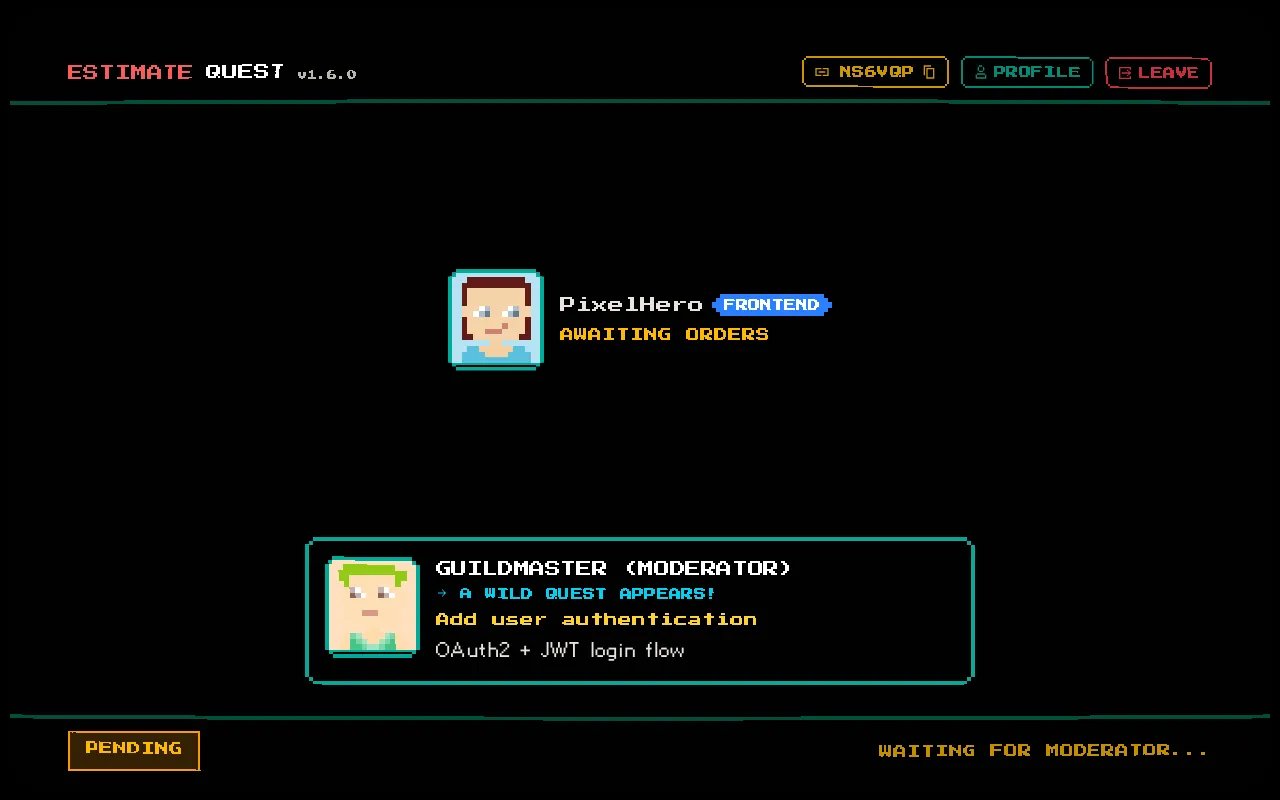
Section titled “1. Waiting for Voting to Start”The current ticket is displayed in the Dialog Box area with its title, description, and URL (if provided). Your voting cards are not yet visible — wait for the moderator to start the round.
2. Voting Phase
Section titled “2. Voting Phase”When the moderator starts voting:
- Your estimation cards appear at the bottom of the screen
- The ticket details remain visible for reference
- A vote progress indicator shows how many team members have voted
Select a card that represents your best estimate for this ticket.
3. Waiting for Reveal
Section titled “3. Waiting for Reveal”After voting, you’ll see your selected card highlighted. You can still change your mind and select a different card.
The Player Arena shows which players have voted (without revealing values). Wait for the moderator to reveal when they’re ready — or when all votes are in.
4. Reveal
Section titled “4. Reveal”The moderator clicks Reveal and all votes are shown simultaneously:
- Each player’s card appears face-up in the Player Arena
- The Vote Summary modal opens showing statistics
- A reveal sound effect plays
5. Discussion
Section titled “5. Discussion”This is the most valuable part of Planning Poker. If votes diverge significantly:
- Outliers are highlighted in the summary
- The team discusses why estimates differ
- Hidden complexity or misunderstandings surface
6. Resolution
Section titled “6. Resolution”The moderator will either:
- Complete the ticket — sets the final estimate and moves on
- Reset votes — clears all votes for another round of estimation
- Skip — moves on without setting an estimate
Then the cycle repeats for the next ticket.
Quest Complete
Section titled “Quest Complete”When all tickets are estimated, you’ll see a Quest Complete dialog with a link to Show Session Recap — a summary of all tickets and their estimates, with the option to export as CSV.