Session Recap & CSV Export
After a session ends, the Session Recap page provides a complete overview of all estimated tickets.
Accessing the Recap
Section titled “Accessing the Recap”- After Quest Complete — the moderator clicks “REVIEW TICKETS”, voters click “Show Session Recap”
- Direct URL — navigate to
/session/{code}/recapat any time
The recap is available to all session participants (moderator, voters, and spectators).
Recap Contents
Section titled “Recap Contents”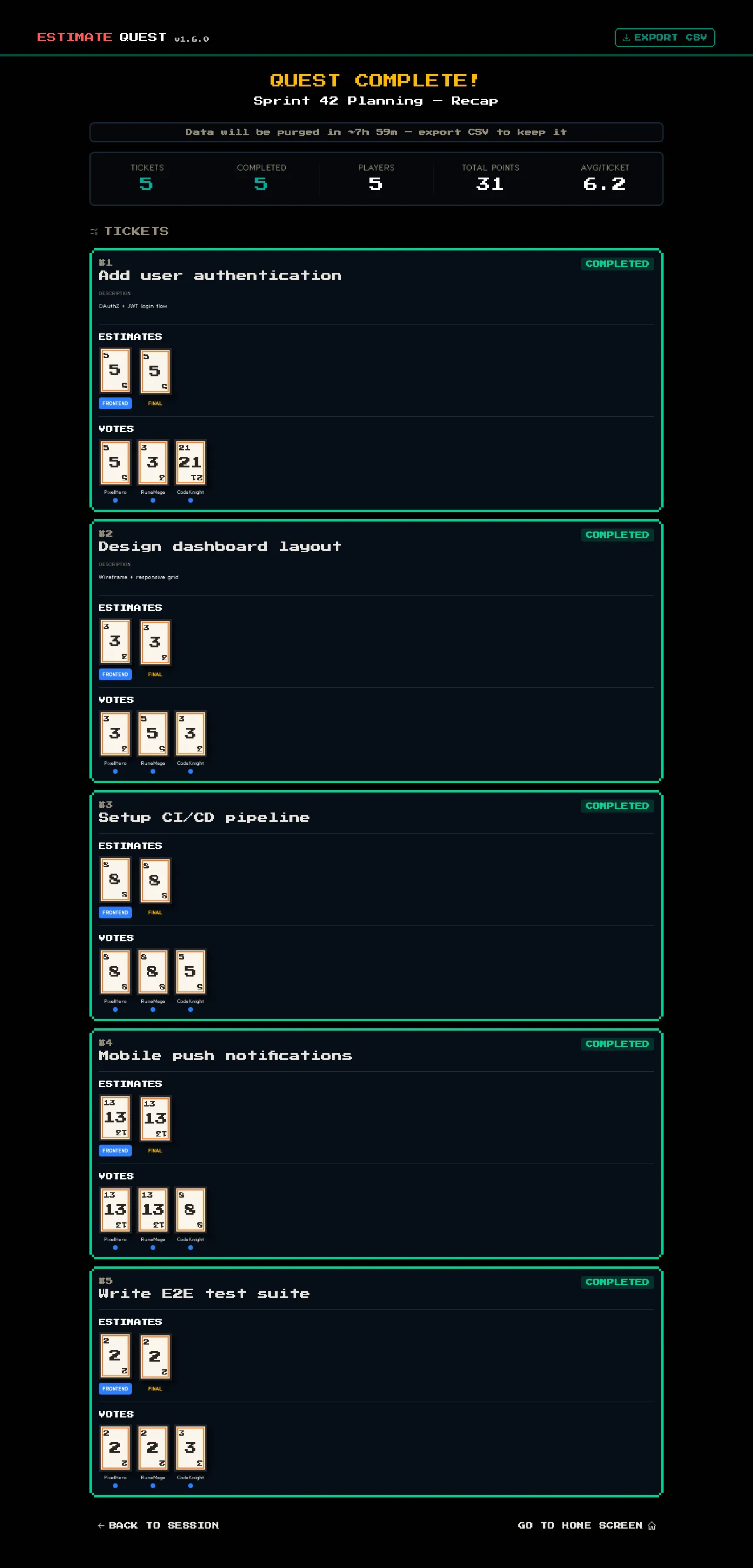
The recap page displays every ticket with:
- Ticket title and status (completed or skipped)
- Final estimate — the overall value set by the moderator
- Per-group estimates — individual estimates for each group that voted
- Individual votes — each voter’s submitted value
CSV Export
Section titled “CSV Export”Click the EXPORT CSV button on the recap page to download a spreadsheet.
CSV Columns
Section titled “CSV Columns”| Column | Description |
|---|---|
| Ticket | The ticket title |
| Status | completed or skipped |
| Final Estimate | The overall estimate set by the moderator |
| {Group} Estimate | One column per group (e.g., “frontend Estimate”, “backend Estimate”) |
| {Player Name} | One column per voter with their individual vote |
File Name
Section titled “File Name”The file is named {SessionName}_export.csv with special characters replaced by underscores.
Security
Section titled “Security”The CSV export includes formula injection protection. Values starting with =, +, -, @, |, or % are escaped with a leading apostrophe to prevent spreadsheet applications from executing malicious formulas.
Using the Export
Section titled “Using the Export”Common uses for the CSV export:
- Import into Jira/Linear/Trello — update story points in your project tracker
- Sprint capacity planning — sum the estimates to plan your sprint
- Estimation accuracy tracking — compare estimates to actual effort over time
- Stakeholder reporting — share sprint scope with managers