Managing Tickets
The moderator manages the ticket backlog before and during the session.
Opening Ticket Management
Section titled “Opening Ticket Management”Access the ticket management modal from:
- The Tickets field on the session creation form
- The settings button (gear icon) during an active session
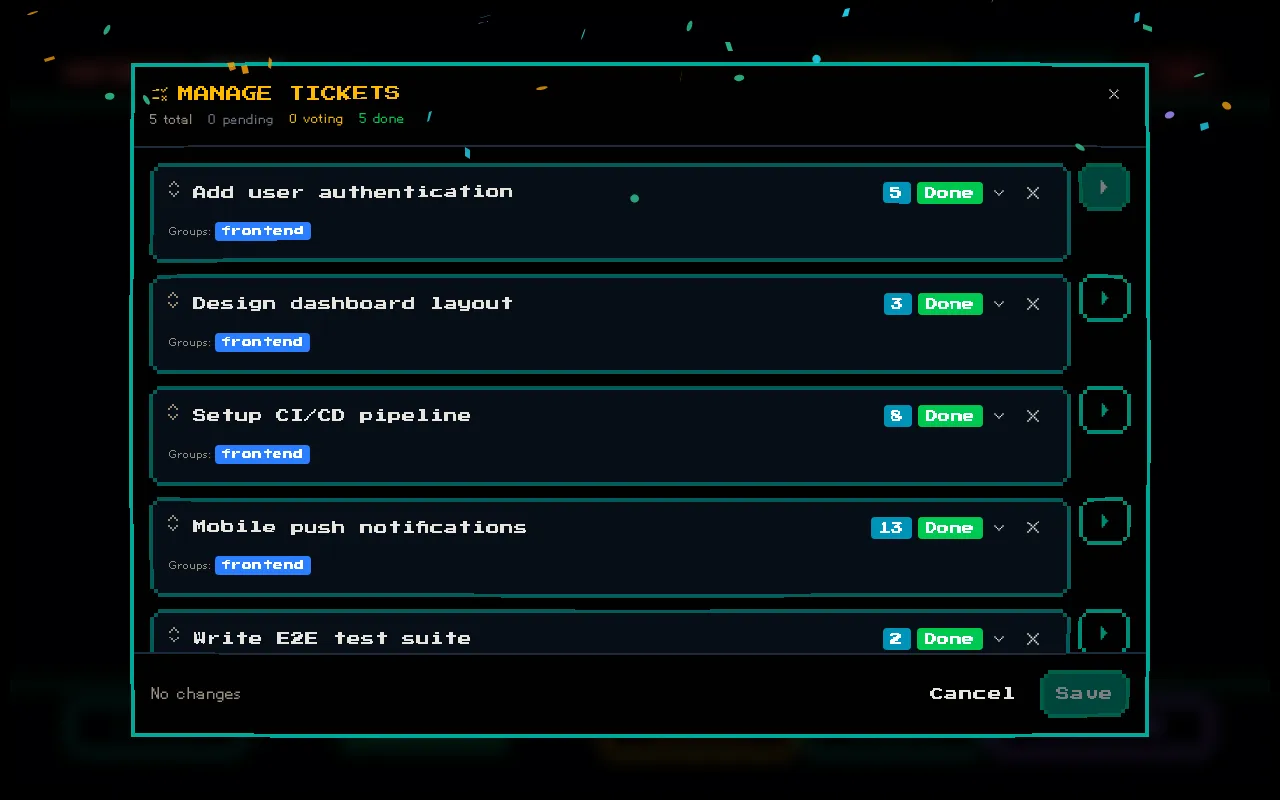
Ticket Fields
Section titled “Ticket Fields”Each ticket has:
| Field | Required | Limit | Description |
|---|---|---|---|
| Title | Yes | 200 chars | The work item name |
| Description | No | 500 chars | Additional context or acceptance criteria |
| URL | No | 500 chars | Link to the ticket in your project tracker (Jira, GitHub, etc.) |
| Groups | Yes | 1–4 | Which teams vote on this ticket |
Adding Tickets
Section titled “Adding Tickets”Click the Add Ticket button in the modal. Fill in the title and select at least one group. The description and URL are optional.
You can add up to 100 tickets per session.
Editing Tickets
Section titled “Editing Tickets”Click on an existing ticket in the list to expand and edit its fields. Changes are saved when you close the modal.
Reordering Tickets
Section titled “Reordering Tickets”Drag tickets to reorder them. The order determines the sequence in which tickets are presented for voting.
Deleting Tickets
Section titled “Deleting Tickets”Click the delete button (trash icon) on a ticket to remove it. Deleted tickets and their votes are permanently removed.
Ticket States
Section titled “Ticket States”Each ticket progresses through these states:
| State | Description |
|---|---|
| Pending | Not yet voted on — waiting in the queue |
| Voting | Currently being estimated — voters see their cards |
| Completed | Final estimate has been set |
| Skipped | Moderator skipped this ticket without setting an estimate |
The moderator controls transitions between states via the session controls.