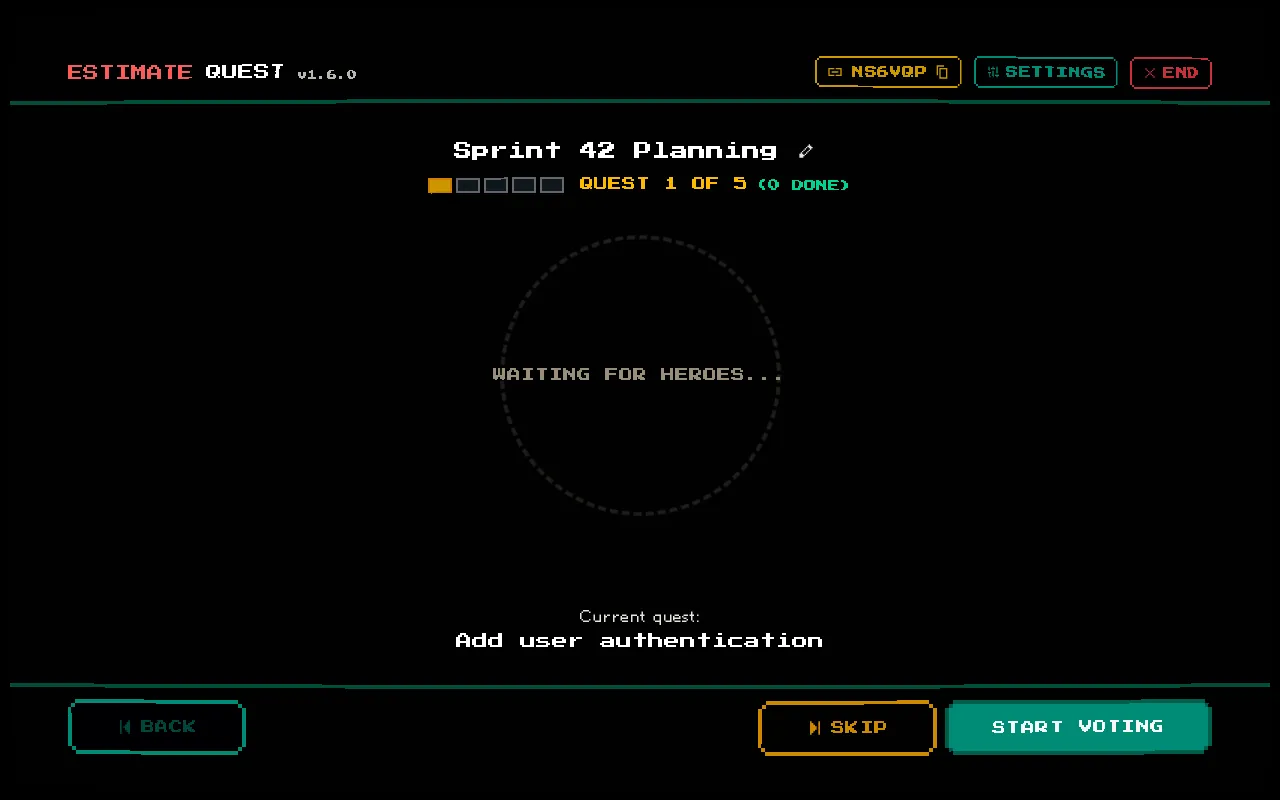
Session Setup
As the moderator, you set up the session during creation and can adjust settings throughout the session.
Initial Configuration
Section titled “Initial Configuration”When creating a session, you choose:
- Session name — visible to all participants
- Deck type — Fibonacci, Linear, or T-Shirt (cannot be changed later)
- Tickets — your backlog of items to estimate
- Music — enable or disable 8-bit background music
Sharing the Session
Section titled “Sharing the Session”After creation, you’ll see your session’s 6-digit code displayed prominently. Share it with your team via:
- The copy link button — copies the full session URL to your clipboard
- Verbally reading the 6-digit code
- Pasting the code into your team chat
Team members enter this code at /session/join to join your session.
Session Settings
Section titled “Session Settings”During the session, click the settings button (gear icon) to access:
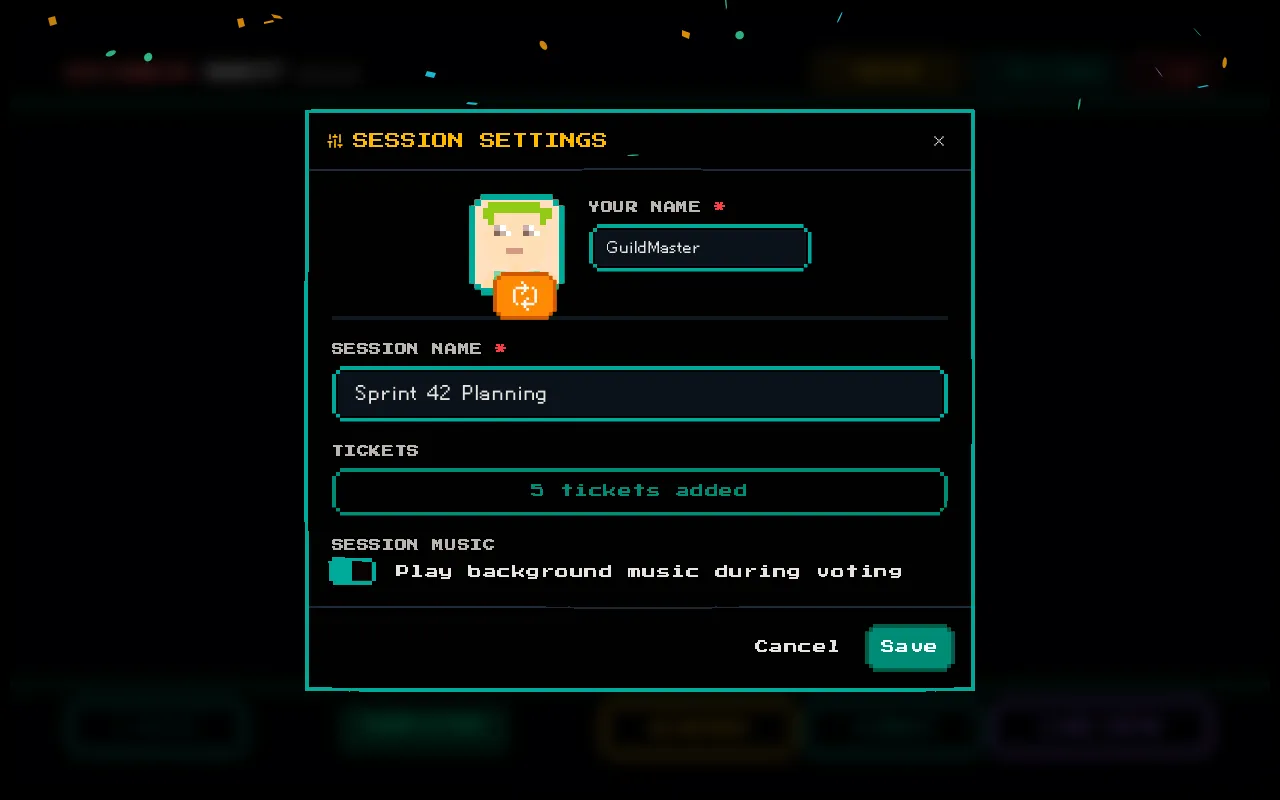
- Manage tickets — add, edit, reorder, or delete tickets
- Session information — view the session code and share link
Waiting for Players
Section titled “Waiting for Players”Before starting the first vote, wait for your team to join. You’ll see each player appear in the Player Arena as they connect. Each player’s avatar, name, and group badge are visible.