Spectator Overview
Spectators can observe the entire session without participating in votes.
What Spectators See
Section titled “What Spectators See”As a spectator, you have a read-only view of the session:
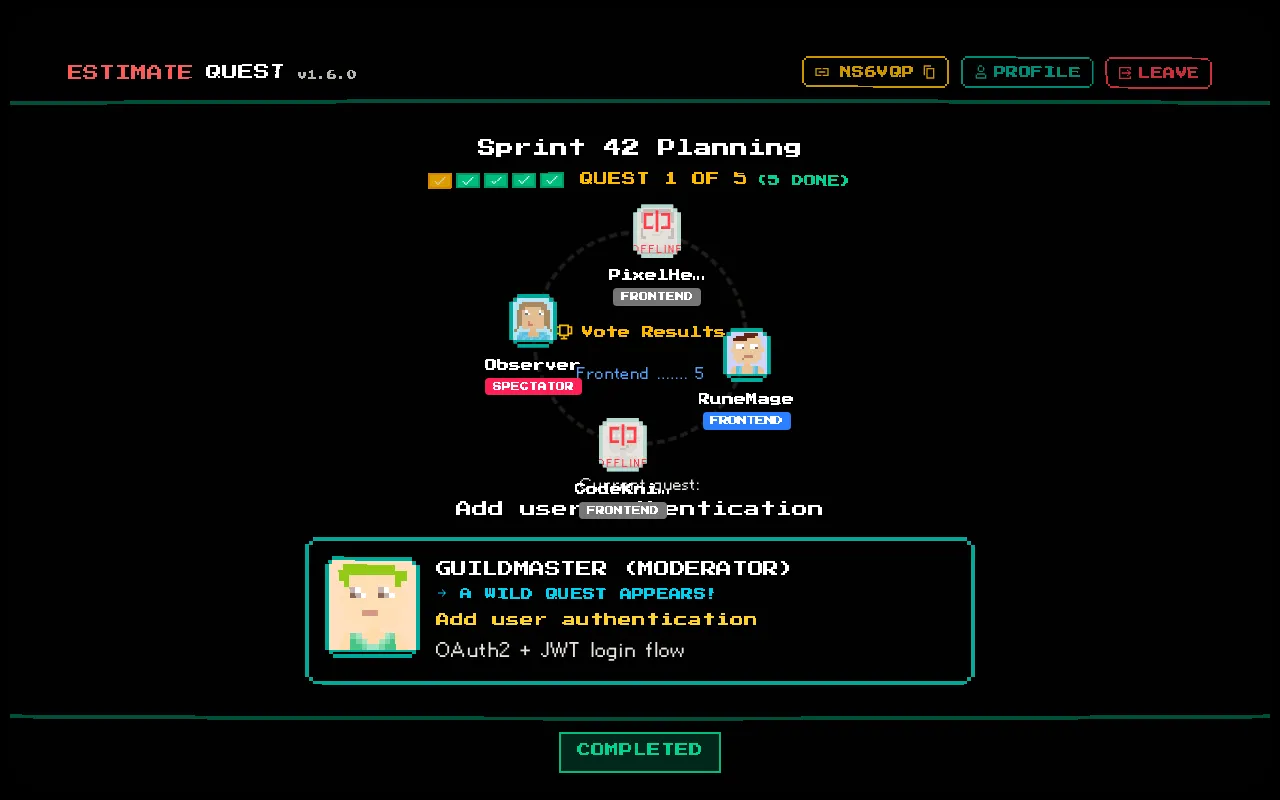
- Player Arena — all connected players with their avatars, names, and group badges
- Current ticket — the ticket being discussed/estimated, including title, description, and URL
- Vote progress — how many voters have submitted estimates (but not the values, before reveal)
- Revealed votes — all votes shown after the moderator reveals
- Vote statistics — full summary including average, median, mode, outliers
- Quest Progress — how many tickets have been estimated
What Spectators Cannot Do
Section titled “What Spectators Cannot Do”- Cast votes
- Control the session (start/reveal/skip/complete)
- Manage tickets or players
- Change session settings
When to Use Spectator Mode
Section titled “When to Use Spectator Mode”The spectator role is designed for:
- Stakeholders — product owners or managers who want to follow estimation discussions
- Team leads — keeping an eye on multiple sessions
- New team members — learning the estimation process by observing before participating
- Distributed teams — remote team members who want context but aren’t needed for estimates
Joining as a Spectator
Section titled “Joining as a Spectator”When joining the session, select Spectator in the role selection. You won’t be asked to choose a group since spectators don’t vote.
Your spectator role is saved locally, so it will be pre-selected next time you join a session.
Interactive Tour
Section titled “Interactive Tour”On first join, the spectator tour walks you through the interface elements relevant to your role:
- Welcome introduction
- Quest Progress bar
- Player Arena
- Dialog Box (ticket details)
- Spectator indicator (desktop)
- Mute button (desktop)
- Help button (desktop)
You can replay the tour anytime using the Help button.
For a comparison of all roles and their capabilities, see Understanding Roles.